Start recording with the Action button on iPhone
Quickly start a recording in Circleback using the Action button on iPhone
You can use the Action button on your iPhone to quickly start recording a meeting in the Circleback mobile app.
-
Go to the Settings app on your iPhone.
-
Tap Action Button.
-
Swipe left to Controls.
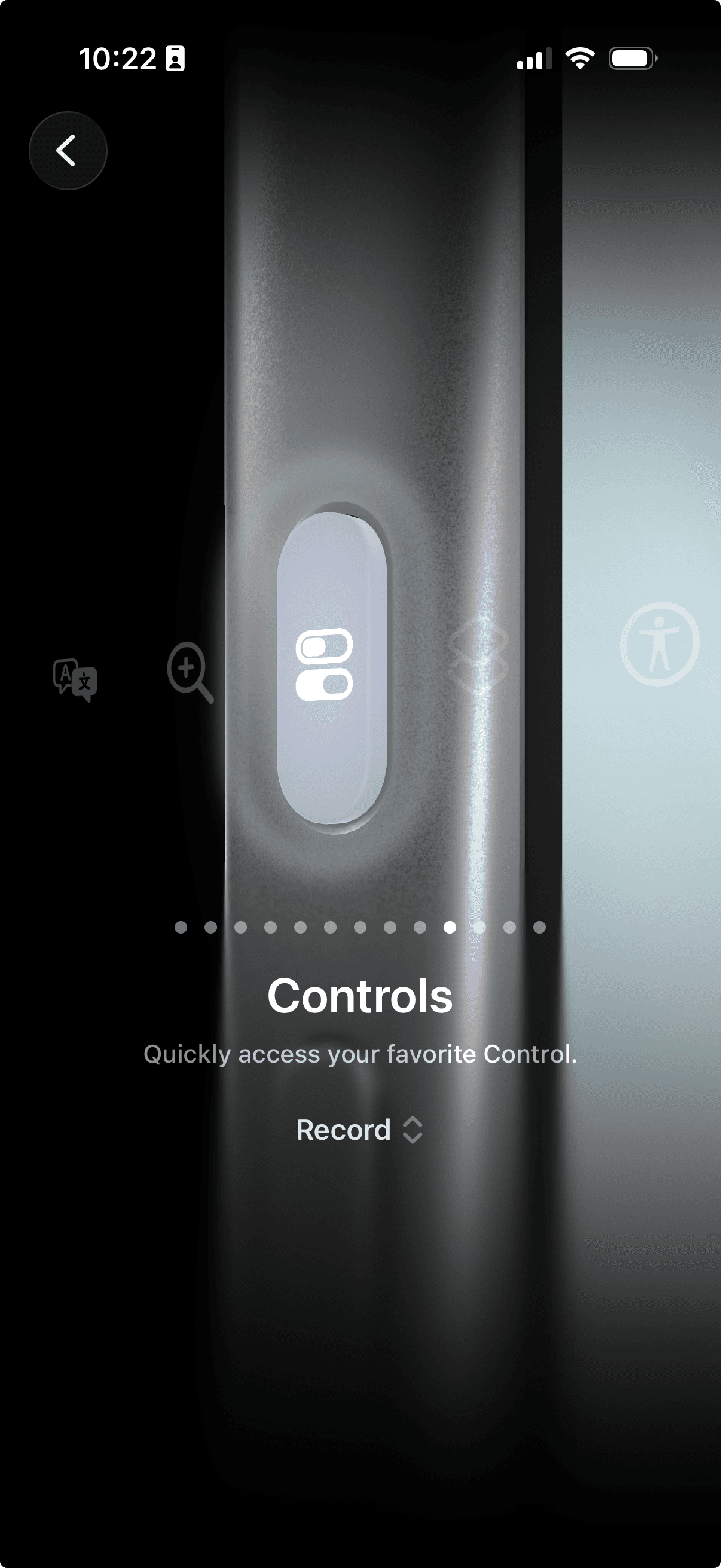
-
Search for Circleback and select Record.
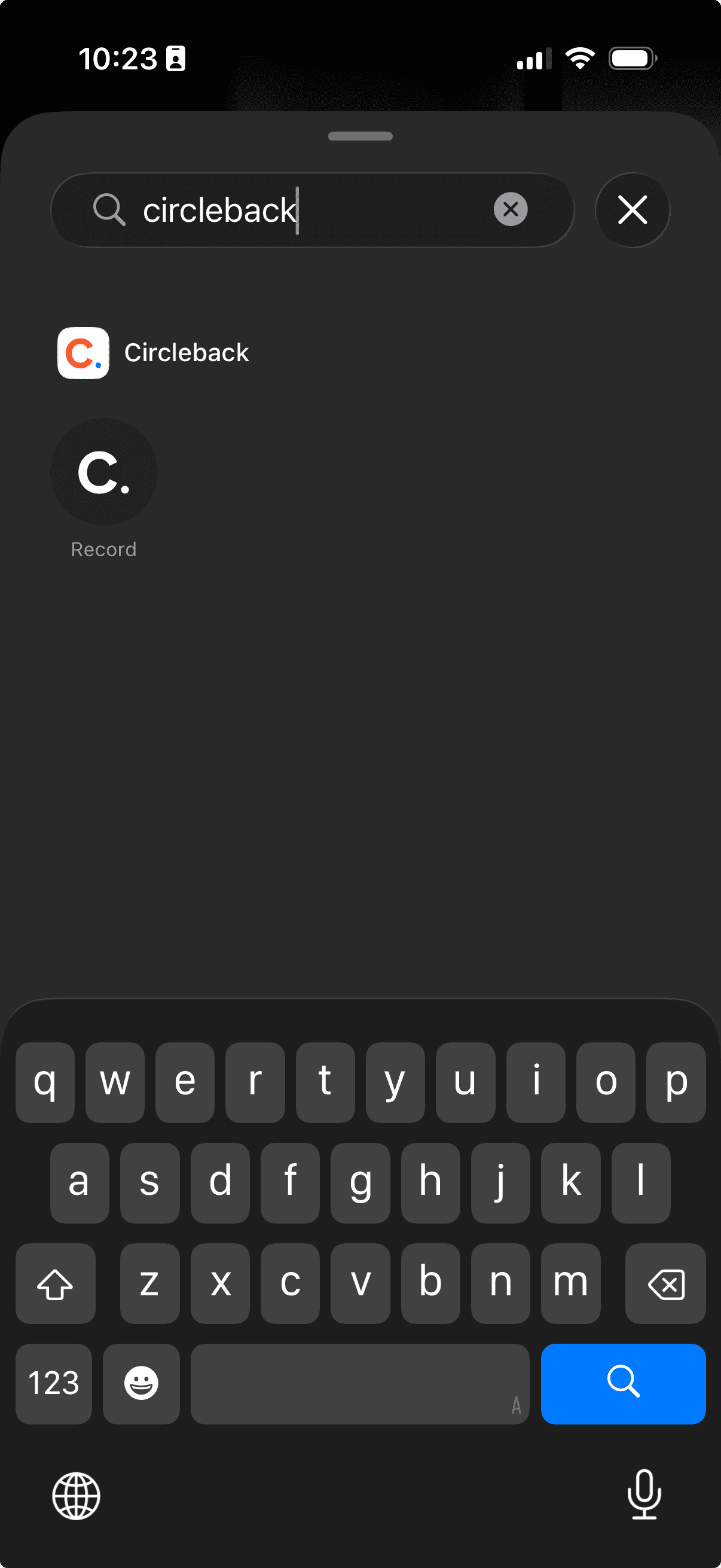
Now, when you press and hold the Action button on iPhone, Circleback will open and start a recording for the current meeting on your calendar.
Related articles
Record meetings with the mobile appCapture in-person meetings and conversations with your phoneRecord a phone callRecord phone calls with your phone's built-in call recording and import them into CirclebackStart recording with the Circleback widget on iOSQuickly start a recording from your Lock Screen or Home Screen on iOSSelect and take action on multiple meetingsQuickly select multiple meetings to perform bulk actions like sharing, managing tags, running automations, and deleting.