Set your profile image
You can now set a profile image that shows up everywhere you appear in Circleback, including meetings, comments, and action items.
To set yours, go to Settings → Account and upload an image.
با آخرین قابلیتها و بهبودهای محصول آشنا شوید.
You can now set a profile image that shows up everywhere you appear in Circleback, including meetings, comments, and action items.
To set yours, go to Settings → Account and upload an image.
We've made several updates to sharing that improve the whole experience: you can now share meetings with anyone, choose how much access people get, and set defaults for how meetings are shared with invitees.
You can now share meetings with anyone by entering their email. They don't need to be in your workspace or invited to the meeting. They'll get an email with the notes and a link to open the meeting in Circleback.
When sharing a meeting, whether with specific people or via a link, pick one of three access levels:
Share the full picture with a teammate, or just the notes with a client.
New settings let you choose defaults for how meetings are shared with invitees, including different access for invitees in your workspace and those outside it. Go to Settings → Sharing to set your own defaults. Workspace admins can set defaults for everyone or enforce them across the workspace from Settings → General → Sharing.

You can now import recordings to Circleback directly from your phone. Bring in recorded phone calls, voice memos, and audio from other apps, and you'll get notes, action items, and a transcript, just like any other meeting.
There are two ways to import. From the Circleback app, tap the new meeting button, then tap ⋯ → Import. From any other app, like Voice Memos or Files, tap Share, select Circleback, and the recording will import automatically.

Deleting a meeting is no longer permanent. When you delete one, it now moves to Recently deleted. To find your deleted meetings, select your name in the bottom-left → Recently deleted. From there you can restore a meeting to bring it back, or delete it permanently. Meetings are kept for 30 days, then deleted permanently.
You can now see your meeting activity over time as a graph in the usage dashboard. Each square is a day, and the more meetings you had, the darker it gets, so you can see a whole year of activity at a glance. It's an easy way to spot your patterns: which weeks were packed, and which ones had room to breathe.

If you're a workspace admin, you can view the same graph for anyone on your team.
Go to Settings → Usage to see it.
Circleback is now on Apple Watch. Record an in-person meeting straight from your wrist, no phone required. Add the Circleback complication to your watch face and recording is always one tap away.
When the meeting ends, you'll get notes, action items, and a transcript in Circleback, just like always.
Update to the latest version of the iOS app to get started.

You can now add apps that Circleback ignores when detecting meetings. When an app is ignored, you won't get a notification to start recording when it uses your microphone.
Not all apps use your microphone for meetings. Adding those apps to your ignored list keeps recording notifications focused on what you want captured. Add and manage ignored apps from Settings → Notifications on the desktop app.

You can now ask Circleback about Linear and update it from the assistant. Ask Circleback to check if something from a meeting is already tracked, create issues for what's missing, or add context to existing ones.
Get started by connecting Linear from Settings → Connected accounts and asking Circleback something like:

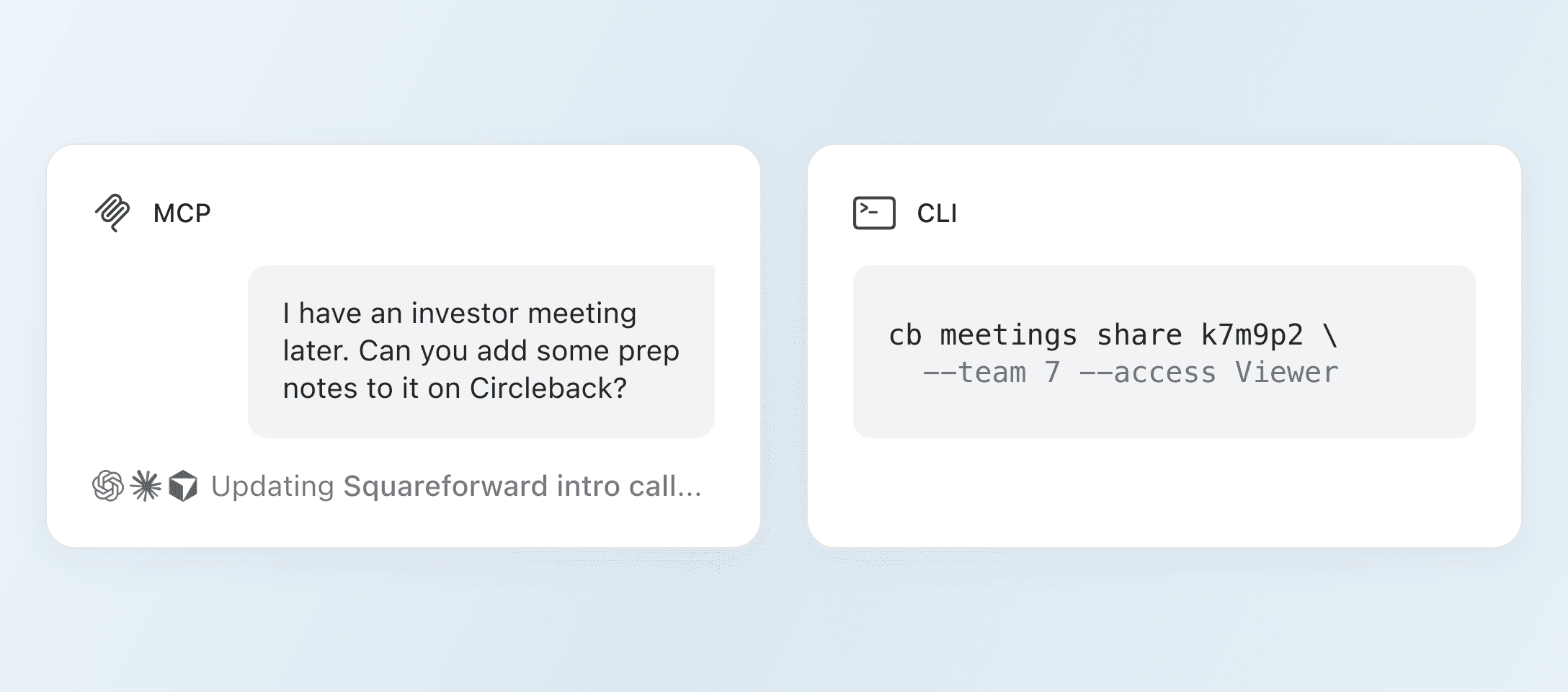
You can now access meeting recordings through the Circleback MCP and CLI. When you read a meeting, Circleback includes a link you can use to download its recording.
Run circleback meetings read to see the recording link in your terminal, or ask Claude, ChatGPT, or any AI agent connected to Circleback to pull a recording from a recent call.
A workspace can now have more than one domain. If your company uses several email domains, you can add all of them, so anyone with an email from any of those domains can join your workspace, or be added automatically when they sign up.
Admins can add a domain from Settings → General. Select + next to Domains and enter the new one.

You'll now see a minimal panel the whole time you're recording on desktop, so you always know when Circleback is capturing your meeting. It stays out of the way, and expands to show the recording controls when you hover over it. Drag it anywhere on your screen and it snaps neatly into place. Click the Circleback icon to open a note-taking window where you can jot down thoughts during the meeting.
Circleback now captures details from what's shared on screen during your meetings. If someone shares slides, a dashboard, a timeline, or a doc, the important details make it into your notes alongside the conversation.
What's shared is also searchable and available to the assistant, and any AI agents you connect to Circleback. A metric from a dashboard, pricing shown on a slide, and a milestone date from a doc are all reachable, even when no one said the words out loud.
Every important detail from your meetings is now captured, whether said or shown.