O que há de novo

Conheça as últimas funcionalidades e melhorias do produto.

  • May 19, 2026

    Filter action items by company

    You can now filter action items by company. On the action items page, select Filter → Companies to see only action items from meetings with the companies you choose. Combine this with other filters to narrow further.

    This makes it easy to track every open task for an account in one place, no matter which meeting it came from.

  • Apr 30, 2026

    People and companies

    Every person and company you meet with now has a dedicated space in Circleback. Open it to see pending action items, recent meetings and emails, and upcoming calendar events. If you've connected a tool like Attio, HubSpot, Salesforce, Zoho, or Linear, you can also jump straight to their matching record there.

    Catching up on someone used to mean bouncing between your calendar, your inbox, and your meetings. Now you get the complete picture in one place.

    You can also ask Circleback questions about a person or company directly from their space. It'll answer using everything it knows about them.

    Find them under Spaces in the navigation sidebar, from search, or by selecting a person or company name in any meeting. More is coming to these spaces soon.

  • Apr 8, 2026

    Automatic microphone switching

    When you change microphones mid-meeting, the Circleback desktop app now automatically switches to recording with the new device without missing a word. This works whether you plug in a headset, take out your AirPods, or unplug a USB mic.

    No action needed on your part. It just works.

  • Apr 3, 2026

    Select and take actions on multiple action items

    You can now select and take actions on multiple action items. Click an action item to select it, Shift-click to select a range, or use ⌘/Ctrl A to select all. You can also click and drag–which now works for meetings too.

    Once selected, take action from the menu at the bottom, or use ⌘/Ctrl K to open the command menu and pick an action–such as changing status, reassigning, or deleting action items.

  • Mar 22, 2026

    Number of invitees automation condition

    You can now run automations based on how many people are invited to a meeting. When setting up an automation, select Number of invitees as a condition and choose whether the count is, greater than, or less than a number you specify.

    This makes it easy to target meetings by size without listing specific people. Combine this with existing conditions for even more control. For example, filter for exactly 2 invitees and your company's email domain to run an automation only on internal 1:1s.

  • Mar 19, 2026

    Views

    You can now save a set of filters on meetings and action items as a view and switch between views with one click.

    If you find yourself filtering meetings or action items the same way over and over, you can save that as a view. Click the + next to your tabs, name your view, add your filters, and hit Save. Your view appears as a tab you can switch to anytime.

    Use views to organize work the way you think about it: customer calls, hiring loops, shared meetings, project action items, or anything else. Switch between views instantly, and update them anytime as your workflow evolves.

  • Mar 18, 2026

    Circleback CLI

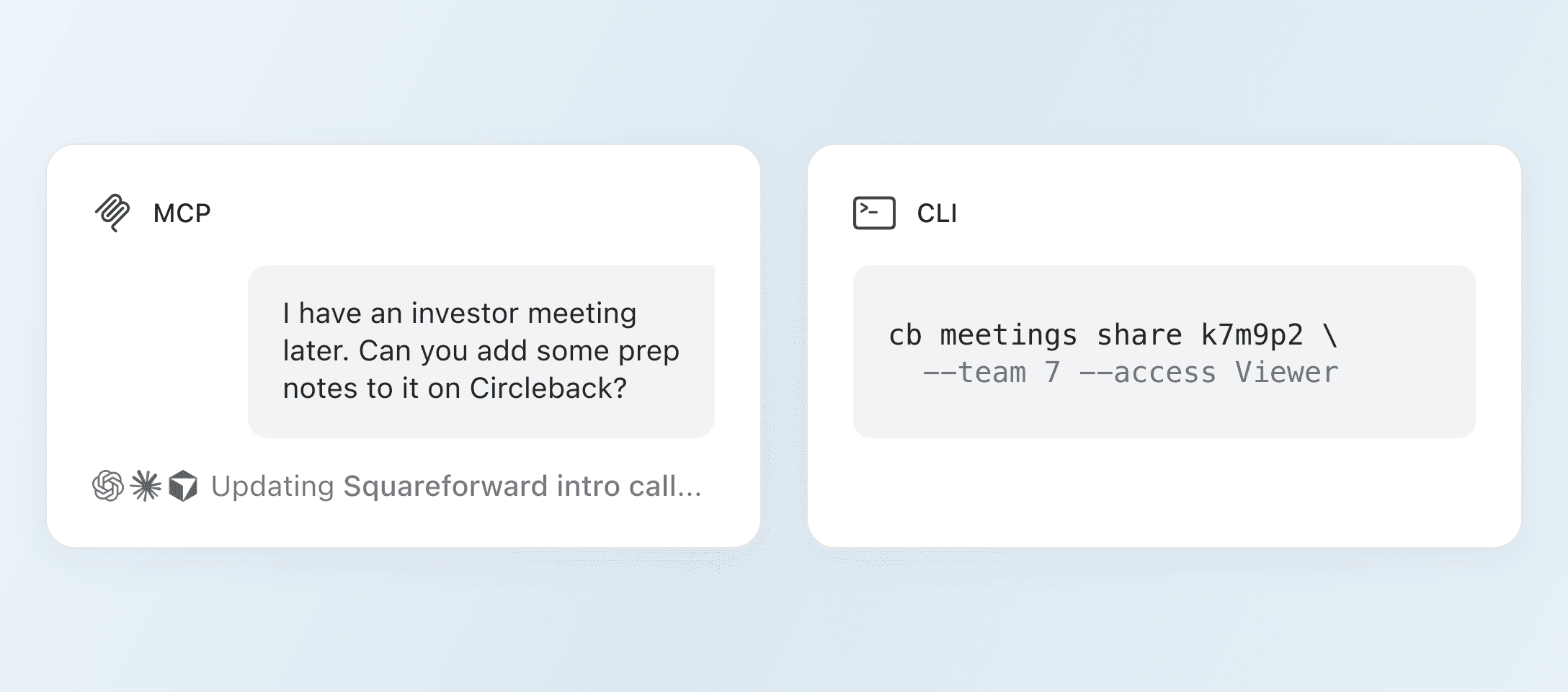
    You can now search and access your meetings, emails, calendar events, and more from your terminal with the Circleback CLI.

    Access everything from the command line, or give your agents the conversation context they need to get things done. Have OpenClaw follow up on action items from this morning's standup. Let Claude Code draft a spec based on your last product review.

    Webhooks, MCP, and now the CLI. Your conversations are yours. Access them however you want, wherever you do your work.

    Get started by installing the Circleback CLI:

    $ npm install -g @circleback/cli

    $ circleback login

  • Mar 11, 2026

    Dark mode on mobile

    Dark mode is now available on mobile. The app follows your device's appearance setting by default, so if your phone is set to dark mode, Circleback will be too. You can also set it manually from Settings → Appearance on mobile.

  • Mar 10, 2026

    Improved share modal

    We've updated the share modal to make it easier to share meetings with the right people. You can now search by name or email to find workspace members, meeting attendees, or teams, then press share to give them access instantly.

    The modal now shows everyone who has access to a meeting in one place, whether they're in your workspace or received the notes via email, so you can see at a glance who can view it.

  • Mar 9, 2026

    Change microphone and screen while recording

    You can now switch your microphone and captured window while a recording is in progress on desktop. If you need to change your audio input or capture a different window mid-meeting, simply update your selection from the record panel without stopping your recording.

    Previously, your microphone and window selection were locked in once a recording started. Now you have full control throughout the meeting.

  • Mar 9, 2026

    Circleback in ChatGPT

    You can now access context from your conversations in Circleback directly in ChatGPT. Once connected, ChatGPT will automatically reference your Circleback data when relevant, or you can mention Circleback explicitly to pull in specific details.

    This means you can combine your conversation context with everything else ChatGPT can do. Ask it to build a report using insights from your recent calls and live web data. Have it analyze trends across your meetings alongside industry research. Your conversations become essential context that ChatGPT can work with.

    The ChatGPT app uses the same MCP connection available in Claude, Cursor, and other AI tools. Get started by connecting the app here.

  • Mar 5, 2026

    Choose whether to record meeting video on desktop

    You can now choose whether video from the meeting is included by default when recording with the desktop app. A new Record meeting window toggle under Settings → Notifications lets you turn off video recording for detected meetings, so only audio is captured. You can still change this from the notification before a recording starts.

Experimente grátis. Assine se você amar.